Close Menu
AdimorahBlogAdimorahBlog
  • Home
  • ABOUT US
  • CONTACT US
  • PRIVACY POLICY
  • XIAOMI
    • Xiaomi apps
      • POCO beta testers
    • Xiaomi News
    • Xiaomi Pad
    • Redmi
    • POCO
  • MIUI updates
    • MIUI 14
    • MIUI beta testers
    • MIUI launcher
  • Google
    • Google Camera
    • Pixel
    • Google chrome
  • Samsung
    • OneUI news
    • Samsung News
    • Samsung Galaxy Watch
  • Android
    • Android 13
    • Android 14
    • Android 15
    • Android Auto
  • Smartphone
    • Apple
    • Samsung
    • Pixel
    • XIAOMI
    • Redmi
    • POCO
    • OnePlus
    • Sony
    • Fairphone
    • OnePlus
  • How To
  • Gaming
    • Video gaming
Facebook X (Twitter) Instagram
AdimorahBlogAdimorahBlog
Subscribe
  • Home
  • ABOUT US
  • CONTACT US
  • PRIVACY POLICY
  • XIAOMI
    • Xiaomi apps
      • POCO beta testers
    • Xiaomi News
    • Xiaomi Pad
    • Redmi
    • POCO
  • MIUI updates
    • MIUI 14
    • MIUI beta testers
    • MIUI launcher
  • Google
    • Google Camera
    • Pixel
    • Google chrome
  • Samsung
    • OneUI news
    • Samsung News
    • Samsung Galaxy Watch
  • Android
    • Android 13
    • Android 14
    • Android 15
    • Android Auto
  • Smartphone
    • Apple
    • Samsung
    • Pixel
    • XIAOMI
    • Redmi
    • POCO
    • OnePlus
    • Sony
    • Fairphone
    • OnePlus
  • How To
  • Gaming
    • Video gaming
AdimorahBlogAdimorahBlog
Home | MIUI update | Xiaomi News | How To | How to Enable And Disable Automatic App Updates on iPhone
How To

How to Enable And Disable Automatic App Updates on iPhone

Anna BrookesBy Anna BrookesFebruary 25, 2023Updated:February 26, 2023No Comments2 Mins Read
Facebook Twitter Pinterest LinkedIn Tumblr Email
Enable And Disable Automatic App Updates on iPhone
Share
Facebook Twitter LinkedIn Pinterest Email

Apps are one of the most integral parts of the iPhone experience. The App Store is full of millions of apps that can help you do everything from keeping track of your fitness to ordering food. While apps are generally good for you, there are times when you might not want to update them.
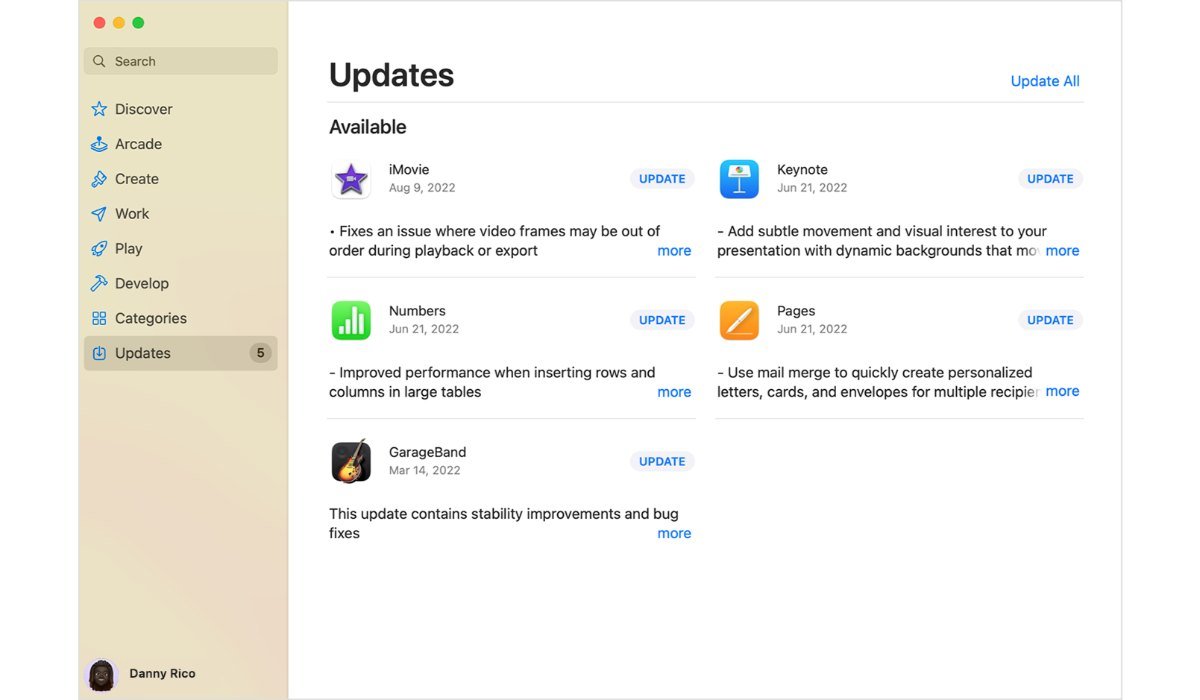
How to Enable And Disable Automatic App Updates on iPhone

If you’re running low on storage, for example, you might want to disable automatic app updates. Or, if you’re on a metered data connection, you might not want to update apps until you’re on Wi-Fi. Thankfully, Apple gives you complete control over when and how your apps are updated. Here’s how to disable and enable automatic app updates on your iPhone.

How to Disable Automatic App Updates

If you prefer to have more control over your app updates or have limited data, disabling automatic app updates may be a better choice. Here’s how to disable automatic app updates:

  1. Open the “Settings” app on your iPhone.
  2. Scroll down and select “ITunes & App Store.”
  3. Under “Automatic Downloads,” toggle off “App Updates.”

Once you have disabled this feature, your iPhone will no longer automatically download and install app updates. Instead, you will need to manually download and install updates by opening the App Store app and checking for updates.

How to Enable Automatic App Update

By default, automatic app updates are enabled on iPhones. If you wish to ensure that you always have the latest version of an app, this is the feature for you. Here’s how to enable automatic app updates:

  1. Open the “Settings” app on your iPhone.
  2. Scroll down and select “ITunes $ App Store.”
  3. Under “Automatic Downloads,” toggle on “App Updates.”

Once you have enabled this feature, your iPhone will automatically download and install app updates less than 100mb as they become available. This can be a time-saver and ensure that you always have the latest features and bug fixes.

Conclusion

Automatic app updates can be a useful feature for ensuring that you always have the latest version of an app. However, it may not be suitable for everyone. By following the steps outlined above, you can easily enable or disable automatic app updates on your iPhone. Whether you prefer more control over your app updates or want to save on data and battery life, adjusting this setting can help you tailor your iPhone to your specific needs.

iPhone
Share. Facebook Twitter Pinterest LinkedIn Tumblr Email
Anna Brookes

Related Posts

How to Use a Free Online Image Converter Easily

September 26, 2025

How to track people using Find My Device on Android

June 11, 2025

How to find someone on the Maps using an iPhone

June 9, 2025
Add A Comment
Leave A Reply

Recent Posts
  • How to Use a Free Online Image Converter Easily
  • Xiaomi starts rolling out stable Android 16 based on HyperOS 2
  • Galaxy A36 Android 16-based One UI 8 build spotted
  • Galaxy A15 One UI 8 build spotted on Samsung servers
  • Xiaomi 13T HyperOS 2.2 is now available for download
About Us
AdimorahBlog was founded in 2017 and has grown into a global brand in the past years. As we continue to expand, we will keep providing our readers with the best coverage on Xiaomi HyperOS updates and smartphone latest Android OS updates. We strive to become the update hub for all smartphones. Contact Us: info@adimorahblog.com
AdimorahBlog
Facebook X (Twitter) YouTube Telegram
  • Home
  • CONTACT US
  • ABOUT US
  • PRIVACY POLICY
© 2026 AdimorahBlog. Designed by ThemeSphere.

Type above and press Enter to search. Press Esc to cancel.