
Close Menu
AdimorahBlogAdimorahBlog
  • Home
  • ABOUT US
  • CONTACT US
  • PRIVACY POLICY
  • XIAOMI
    • Xiaomi apps
      • POCO beta testers
    • Xiaomi News
    • Xiaomi Pad
    • Redmi
    • POCO
  • MIUI updates
    • MIUI 14
    • MIUI beta testers
    • MIUI launcher
  • Google
    • Google Camera
    • Pixel
    • Google chrome
  • Samsung
    • OneUI news
    • Samsung News
    • Samsung Galaxy Watch
  • Android
    • Android 13
    • Android 14
    • Android 15
    • Android Auto
  • Smartphone
    • Apple
    • Samsung
    • Pixel
    • XIAOMI
    • Redmi
    • POCO
    • OnePlus
    • Sony
    • Fairphone
    • OnePlus
  • How To
  • Gaming
    • Video gaming
Facebook X (Twitter) Instagram
AdimorahBlogAdimorahBlog
Subscribe
  • Home
  • ABOUT US
  • CONTACT US
  • PRIVACY POLICY
  • XIAOMI
    • Xiaomi apps
      • POCO beta testers
    • Xiaomi News
    • Xiaomi Pad
    • Redmi
    • POCO
  • MIUI updates
    • MIUI 14
    • MIUI beta testers
    • MIUI launcher
  • Google
    • Google Camera
    • Pixel
    • Google chrome
  • Samsung
    • OneUI news
    • Samsung News
    • Samsung Galaxy Watch
  • Android
    • Android 13
    • Android 14
    • Android 15
    • Android Auto
  • Smartphone
    • Apple
    • Samsung
    • Pixel
    • XIAOMI
    • Redmi
    • POCO
    • OnePlus
    • Sony
    • Fairphone
    • OnePlus
  • How To
  • Gaming
    • Video gaming
AdimorahBlogAdimorahBlog
Home | MIUI update | Xiaomi News | How To | How to cancel a PayPal Payment in simple steps
How To

How to cancel a PayPal Payment in simple steps

Anna BrookesBy Anna BrookesSeptember 24, 2022Updated:October 6, 2023No Comments3 Mins Read
Facebook Twitter Pinterest LinkedIn Tumblr Email
How to cancel a PayPal transaction
Share
Facebook Twitter LinkedIn Pinterest Email

PayPal makes it easy to make online payments, whether you’re sending money to someone else or making an online purchase from your favorite retailer. But sometimes you need to cancel a PayPal payment—for example, if you accidentally pay the wrong person or don’t need something that you bought. Here’s how to cancel a PayPal payment as quickly and easily as possible.
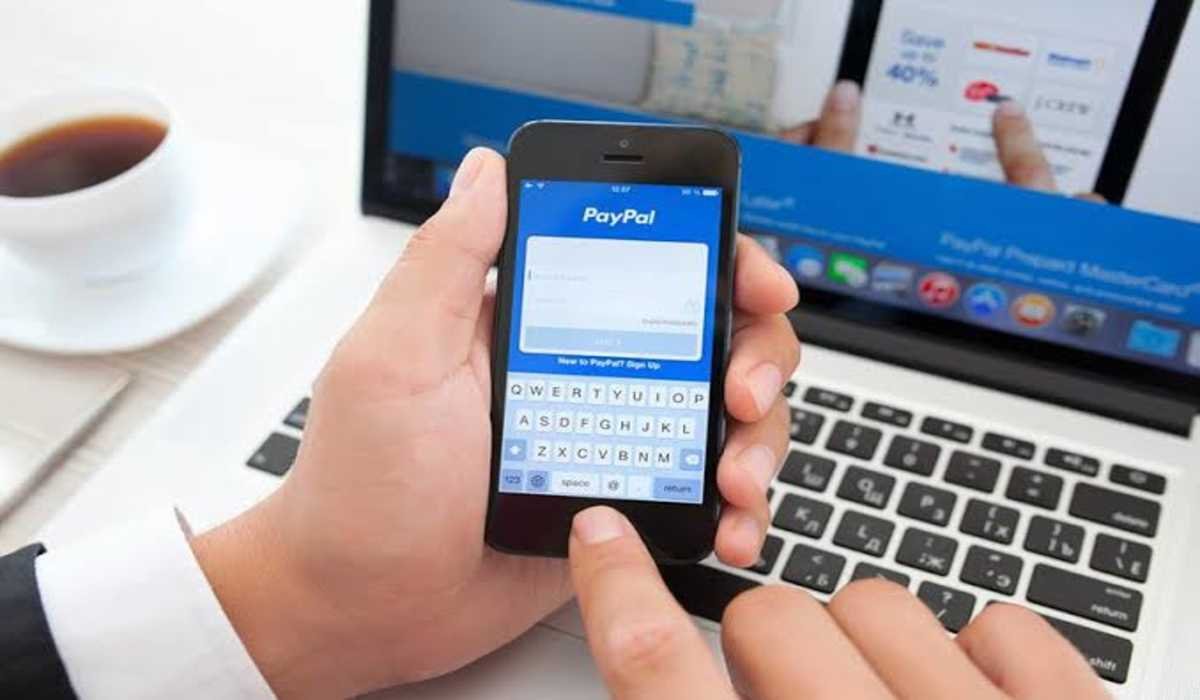
How to cancel a PayPal payment

Why can’t I cancel a PayPal payment?

PayPal payments are known to be very swift when they are made. Hence to cancel a PayPal payment, the payments have to be in “Pending” or “Unclaimed” status. If you are unable to cancel a PayPal payment you made, then the most likely reason is that the payment has gone through and your only option in this scenario is to file a dispute with PayPal, or ask for a refund from the recipient.

advertisement

However, there are some payments that requires the receiver to claim before the transaction can be termed to be successful. If the receiver doesn’t claim it within 30days, PayPal automatically refunds the money to the sender, so no action is required from you in this regard.

How to cancel a PayPal payment

To cancel a PayPal transaction, adhere to the steps below:

1. First things first, log into your PayPal account. Now look for the Activity tab which is located at the top of the page. Click on it.

2. You are now on your “Activity” page. On this page you will find your recent transactions, scroll down to find the one you want to cancel.

3. If it is possible to cancel the transaction, click on “Cancel”.

4. Tap on the Cancel Payment button to confirm your cancellation.

Note again that a completed payment cannot be cancelled. If a payment has been marked as complete, you only have two options; request a refund from the receiver, or file a dispute with PayPal.

How to cancel a recurring PayPal

Preventing future payments and automatic payments is much simpler. If the payment hasn’t gone through yet, you have the power to stop it. To do that, 

Log in to your account and navigate to your account overview. Click the “Summary” button on the top navigation bar, and select “Pre-approved payments,” followed by “Manage pre-approved payments.” You’ll find a list of all your pre-approved payments. To delete one, select the cancel option next to it and then select “Cancel payment” in the pop-up.

That’s it! If you’ve been searching for how to cancel a PayPal payment, hope this helps. 

PayPal
Share. Facebook Twitter Pinterest LinkedIn Tumblr Email
Anna Brookes

Related Posts

How to Use a Free Online Image Converter Easily

September 26, 2025

How to track people using Find My Device on Android

June 11, 2025

How to find someone on the Maps using an iPhone

June 9, 2025
Add A Comment
Leave A Reply

Recent Posts
  • How to Use a Free Online Image Converter Easily
  • Xiaomi starts rolling out stable Android 16 based on HyperOS 2
  • Galaxy A36 Android 16-based One UI 8 build spotted
  • Galaxy A15 One UI 8 build spotted on Samsung servers
  • Xiaomi 13T HyperOS 2.2 is now available for download
About Us
AdimorahBlog was founded in 2017 and has grown into a global brand in the past years. As we continue to expand, we will keep providing our readers with the best coverage on Xiaomi HyperOS updates and smartphone latest Android OS updates. We strive to become the update hub for all smartphones. Contact Us: info@adimorahblog.com
AdimorahBlog
Facebook X (Twitter) YouTube Telegram
  • Home
  • CONTACT US
  • ABOUT US
  • PRIVACY POLICY
© 2026 AdimorahBlog. Designed by ThemeSphere.

Type above and press Enter to search. Press Esc to cancel.